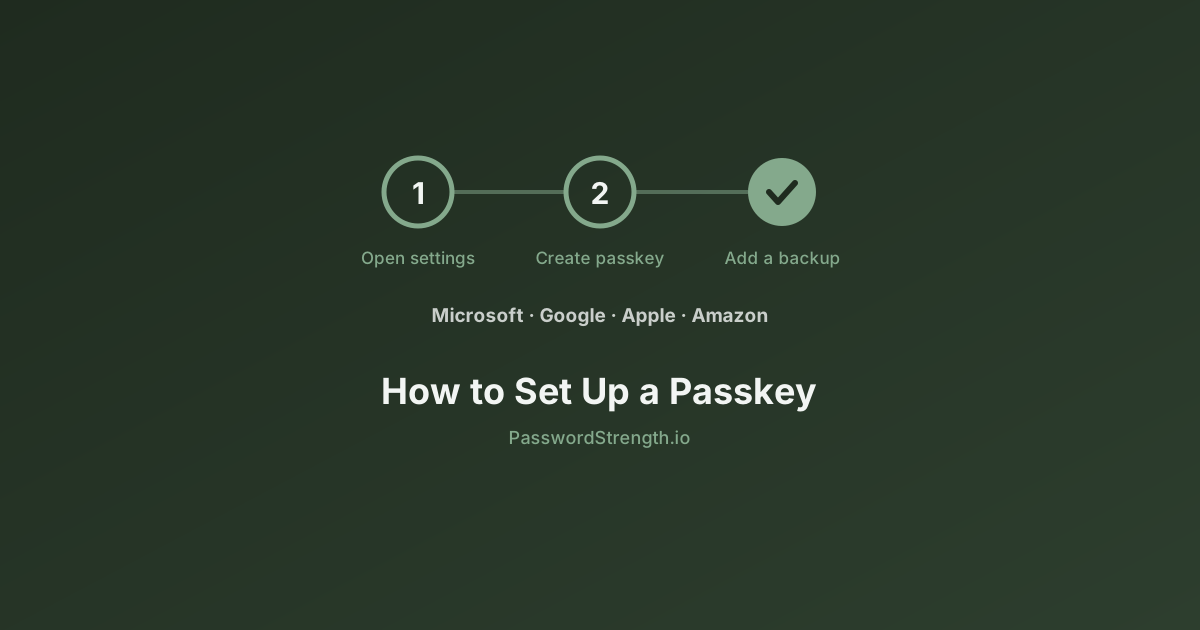
Setting up a passkey takes about ninety seconds per account. The hard part is knowing which menu to open, because every platform buries it somewhere different — and because the setup screen almost never tells you the two things that matter most later: how to remove a passkey, and how to register a second one before you lose the first.
This is the click-by-click guide. It covers Microsoft passkey setup, Google, Apple, and Amazon, then the removal and backup steps that most guides skip. If you want to understand the cryptography underneath, read how passkeys work. If you are still deciding whether to switch at all, read passkeys vs passwords. This post assumes you have already decided and want the steps.
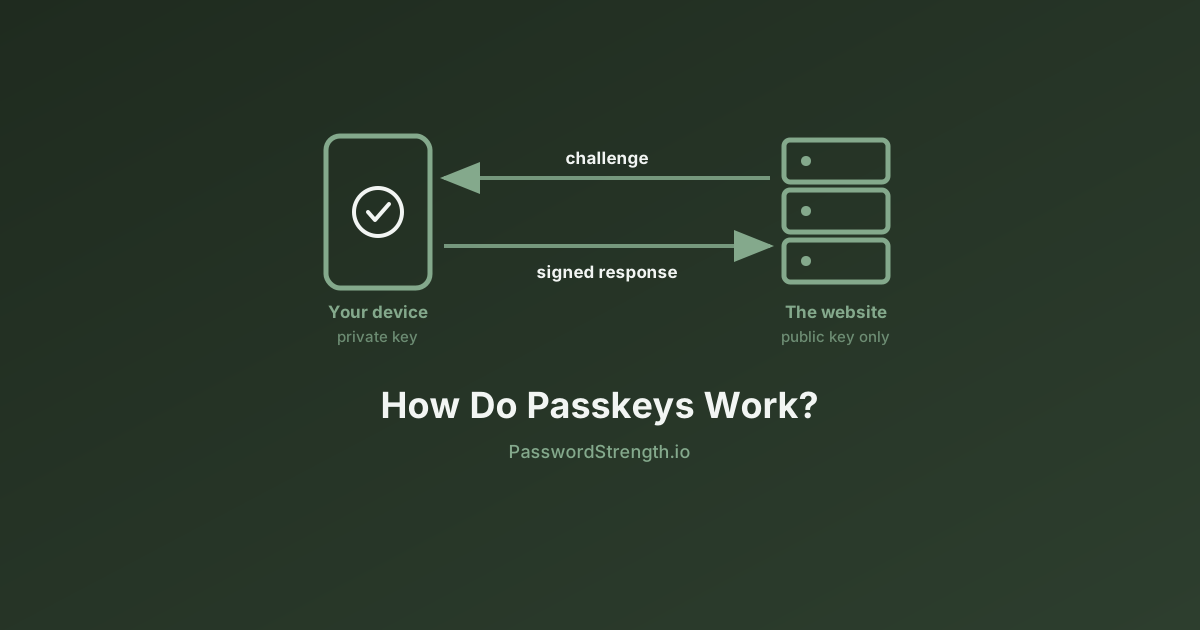
One orienting sentence and then we move on: a passkey is a login credential split into two halves, where the site keeps a public half and your device keeps a private half that never leaves it, so there is nothing to phish and nothing to leak in a breach.
What you need before you set up a passkey
In short: you need a device with a screen lock turned on, a current operating system, and a decision about where the passkey will be stored. Everything else the setup wizard handles for you.
Turn on your screen lock first. Every platform refuses to create a passkey on a device with no PIN, pattern, fingerprint, or face unlock, because the screen lock is the thing that authorizes the passkey. If your phone unlocks with a swipe, setup will fail at the last step.
Here are the minimum versions, per Google's published requirements — these are a good baseline for other services too:
| Requirement | Minimum version |
|---|---|
| Windows | Windows 10 |
| macOS | macOS Ventura |
| ChromeOS | ChromeOS 109 |
| Android | Android 9 |
| iPhone / iPad | iOS 16 |
| Chrome | Chrome 109 |
| Safari | Safari 16 |
| Edge | Edge 109 |
| Firefox | Firefox 122 |
| Hardware key | Any FIDO2-compatible security key |
Two more things to sort out before you start:
- Turn on Bluetooth if you plan to use your phone to sign in on a nearby computer. The cross-device flow uses Bluetooth to confirm the phone is physically present.
- Turn on iCloud Keychain if you are on an iPhone, iPad, or Mac. Without it, your passkeys stay on one device instead of syncing. Setup will prompt you if it is off.
Avoid creating passkeys in a private or incognito window. Google specifically warns that some browser and OS combinations block passkey creation in incognito mode, and the failure is usually silent.
The bottom line: screen lock on, browser current, and create the passkey on the device you actually want to sign in from — passkey creation happens locally, so being on the right device matters.
How to set up a Microsoft passkey
Direct answer: go to account.live.com/proofs/manage, choose Add a new way to sign in or verify, then select Face, Fingerprint, PIN, or Security Key.
Microsoft calls this page "Advanced Security Options," and it is the same page whether you are on Windows, macOS, or a phone browser. Do this on the device where you want the passkey to live.
Microsoft passkey setup, step by step
- On the device where you want the passkey, open a browser and go to account.live.com/proofs/manage.
- Sign in to your Microsoft account. You will be asked to verify your identity.
- Under your sign-in methods, choose Add a new way to sign in or verify.
- Select Face, Fingerprint, PIN, or Security Key.
- Follow the prompt your device shows — Windows Hello, Touch ID, or your phone's unlock method.
- Select Continue or Create to save the passkey where Microsoft suggests. To pick a different location, select Change or Save another way.
Step 6 is the one people click past too fast. Microsoft offers three storage destinations, and the choice determines whether the passkey follows you to other devices:
- A password manager — Microsoft Password Manager, Google Password Manager, iCloud Keychain, or a third-party manager. This one syncs.
- An iPhone, iPad, or Android device — you scan a QR code with your phone's camera (tap Use passkey when it appears) or with the scan button in Microsoft Authenticator. Bluetooth pairing may be required.
- A security key — a physical FIDO2 key. This one does not sync, by design.
One thing that surprises Microsoft users
Since May 2025, brand new Microsoft accounts are passwordless by default. Microsoft changed the signup flow so new accounts never enroll a password at all. Existing account holders can remove their password manually from the same Advanced Security Options page.
This matters for setup: if you created your Microsoft account recently and cannot find a password to remove, that is expected behavior, not a bug. It also raises the stakes on registering a backup — an account with a single passkey and no password has exactly one way in. We cover that below.
How to set up a Google passkey
Direct answer: go to myaccount.google.com/signinoptions/passkeys — the shortlink g.co/passkeys points to the same place — and tap Create a passkey.
Google's flow is the shortest of the four platforms covered here.
Google passkey setup, step by step
- Go to myaccount.google.com/signinoptions/passkeys on the phone or computer where you want the passkey.
- Verify your identity if prompted. If you are signed in to more than one Google Account, confirm you are verifying the right one.
- Tap Create a passkey, then Create a passkey again on the confirmation screen.
- Unlock your device with your fingerprint, face, or screen lock PIN.
To add passkeys on more devices, repeat those steps on each one.
Check whether Google already made you a passkey
Before you create anything, look at what is already there. Google automatically registers passkeys on Android devices that are signed in to your account — so the passkeys page may already list credentials you never deliberately created. The same page at myaccount.google.com/signinoptions/passkeys shows every passkey on the account.
Android users can control this behavior. In Chrome on Android, tap More → Settings → Google Password Manager → the Settings gear, then toggle Automatically create a passkey to sign in faster on or off. That option only appears once Offer to save passwords and passkeys is turned on.
An important consequence of creating a Google passkey
Google is explicit about this: creating a passkey opts you into a passkey-first, passwordless sign-in experience. Once a passkey exists, anyone who can unlock that device can get into your Google Account, even if you sign out. Only create passkeys on devices you personally own.
Your password still works. If you would rather be asked for it first, sign in to your Google Account, tap Security & sign-in, and under "How you sign in to Google," turn off Skip password when possible.
In short: Google passkey setup is two taps, but check the passkeys page first — Android may have already enrolled you.
How to set up an Apple passkey
Direct answer: Apple has no central "create a passkey" button. You create an Apple passkey at the sign-in screen of each individual website or app, and iOS saves it into the Passwords app.
This trips people up. On Microsoft and Google you visit an account settings page. On Apple, iCloud Keychain is the storage layer, not the enrollment page — so passkey creation happens wherever you are signing in.
Creating and saving a passkey on iPhone or iPad
- Confirm iCloud Keychain is on. Without it, passkeys will not sync to your other Apple devices.
- Go to the sign-in screen of a website or app that supports passkeys.
- If you are creating a new account, tap the signup button and follow the prompts. If you already have an account, sign in with your username and password first, then open that service's account settings or security screen.
- When the option to save a passkey appears, tap Continue.
The passkey is saved. Apple stores it in the Passwords app, which became a standalone app in iOS 18 and remains one in iOS 26. You can hold both a password and a passkey for the same service, and they appear together under one account entry.
Apple notes that these steps vary a little by app, website, and browser — the wording of the button changes, but the shape of the flow does not. If no passkey option appears at all, that site does not support passkeys yet.
Saving an Apple passkey to a hardware security key
At the save prompt, tap Other options, Save on another device, or similar wording, then follow the onscreen instructions.
How to set up an Amazon passkey
Direct answer: open Your Account, select Login & security, then choose Set up next to Passkey.
Amazon passkey setup, step by step
- Sign in to Amazon and go to Your Account.
- Select Login & security.
- Find the Passkey row and select Set up.
- Follow the onscreen prompts and authenticate with your device — Windows Hello PIN, fingerprint, or face recognition on a PC; Face ID or Touch ID on Apple devices.
A confirmation appears at the top of the page once the passkey is registered.
To add a second passkey on another device, return to Your Account → Login & security, select Edit next to Passkey, then select Add a passkey. Repeat on each device you want covered.
Amazon has extended passkey support beyond the retail site to services including AWS and Audible, and makes passkeys the default sign-in option on mobile once one is registered.
Where your passkey is actually stored, per platform
Direct answer: a passkey lives in a credential manager, on a specific device, or on a hardware key — and only the first of those three syncs.
This table is the mental model worth keeping. Whether a passkey syncs decides whether losing one device locks you out.
| Platform | Default storage | Syncs across devices? | Where to manage it |
|---|---|---|---|
| Apple (iPhone, iPad, Mac) | iCloud Keychain | Yes, across devices on the same Apple Account | Passwords app → Passkeys |
| Android | Google Password Manager | Yes, across Android and Chrome signed in to the same Google Account | Chrome → Settings → Google Password Manager |
| Windows | Windows Hello, saved to the PC | No — device-bound by default | Settings → Accounts → Passkeys |
| Microsoft account | Your chosen manager, phone, or security key | Depends on what you chose in setup | account.live.com/proofs/manage |
| Third-party manager | The manager's vault | Yes, across everywhere you install it | Inside that manager |
| Hardware security key | The key itself | No, by design | The key's management software |
Windows deserves a note. Passkeys saved directly to a Windows PC are device-bound — they do not follow you to a new laptop. In the Windows Settings app, go to Accounts → Passkeys → Advanced options to control this. The toggle Save passkeys to this Windows device governs local storage, and the same screen configures integration with third-party passkey managers. Your IT administrator may disable this section on a managed work machine.
How to remove a passkey on any device
Direct answer: removing a passkey takes two separate deletions — one from the account, and one from the credential manager holding it — and skipping the second is why deleted passkeys keep reappearing.
⚠️ Before you delete anything: make sure you have another way into the account. Microsoft warns that if you remove a passkey you can no longer use it to sign in, and to add new sign-in information before removing old information. Removing all security information from a Microsoft account puts it into a restricted state for 30 days, during which no further security or billing changes are accepted. Do not delete your only passkey on a passwordless account.
How to remove a passkey on iPhone
- Open the Passwords app on your iPhone.
- Tap Passkeys, then tap the account whose passkey you want to delete.
- Tap Edit.
- Tap Delete, then tap Delete Passkey to confirm.
Because iCloud Keychain syncs, deleting a passkey on an iPhone removes it from every Apple device signed in to the same Apple Account. There is no per-device deletion. You can create a new passkey afterward at any time.
How to remove a passkey on Android
Passkeys created on Android live in Google Password Manager. Open Chrome → More → Settings → Google Password Manager, tap the account entry, authenticate with your fingerprint, face, or device PIN, and delete it. Google Password Manager also has a settings screen for deleting all stored passwords and passkeys at once.
One caveat on the steps above: the per-entry delete sequence shifts slightly between Android versions and Chrome builds, so the exact tap order may differ on your device. The Google Password Manager location and the bulk-delete option are stable — if a specific tap does not match, follow the on-screen labels from there.
How to remove a passkey on Windows
- Open the Settings app.
- Go to Accounts → Passkeys. (The shortcut
ms-settings:savedpasskeysopens it directly.) - Find the passkey by site name, select the more menu next to it, and choose Delete passkey.
This removes passkeys stored locally on that Windows device. For work or school accounts, Microsoft says you must delete the passkey in two places: at mysignins.microsoft.com and wherever it was saved, such as Windows Hello.
How to remove a Microsoft account passkey
- Sign in at account.live.com/proofs/manage.
- Find the entry marked with the passkey icon and expand it.
- The panel shows where the passkey is saved and when it was last used, plus Rename and Remove options.
- Choose Remove.
Renaming is underrated. Passkeys default to generic names, and by the time you own four of them you will not remember which is the old laptop. Name them as you create them.
How to remove a Google account passkey
- Go to your Google Account.
- Tap Security & sign-in.
- Under "How you sign in to Google," tap Passkeys and security keys.
- Select the passkey, then tap Remove.
Passkeys that Android registered automatically work differently — you cannot remove them from the passkeys list. Instead, go to Security & sign-in → under "Your devices," tap Manage all devices → tap the device → Sign out. Multiple sessions may share a device name, so sign out of all of them to be sure.
If you remove a passkey and your device still offers it at sign-in, it is still sitting in a third-party credential manager. Delete it there too.
How to remove an Amazon passkey
Go to Your Account → Login and security, select Passkey, select the delete icon next to the specific passkey, and confirm. Amazon notes you should then delete the passkey from your passkey provider as well, or your device will keep suggesting it during autofill.
The bottom line: account-side deletion and manager-side deletion are two different operations. Do both.
How to register a backup passkey before you need it
Direct answer: register at least two passkeys per important account, stored in two different places — ideally one syncing credential and one hardware security key.
This is the step every setup wizard omits, and it is the difference between a lost phone being an annoyance and a lockout. The logic is simple: a syncing passkey protects you against losing a device, and a hardware key protects you against losing access to the sync account itself.
Here is a practical setup for a Microsoft or Google account:
- Create your primary passkey in a syncing credential manager, following the platform steps above. This covers everyday sign-in on all your devices.
- Add a hardware security key as a second passkey. On Google, go to
myaccount.google.com/signinoptions/passkeys, tap Create a passkey, then choose Use another device, and follow the prompts — you will insert the key and either enter its PIN or touch its fingerprint sensor. On Microsoft, run the same Add a new way to sign in or verify → Face, Fingerprint, PIN, or Security Key flow, then choose Security key at the save-location step. On Apple, choose Other options or Save on another device at the save prompt. - Store the hardware key somewhere physically separate from your daily devices — a drawer at home, a safe, a desk at work.
- Rename each passkey so you can identify and revoke the right one later.
- Keep your account recovery methods current. A recovery email or phone number that still works is the last line of defense.
Two constraints worth knowing. First, the hardware key must support FIDO2 — older U2F-only keys will not hold a passkey. Second, Google notes that if you added a FIDO2 security key to your account before May 2023, you may need to remove it from your account before you can create a passkey on it.
If your organization gave you a Google Workspace account, expect different behavior: you may not be able to sign in with a passkey alone. Passkeys on Workspace accounts can serve as a second factor in 2-Step Verification or as a recovery option, depending on your admin's policy.
For a broader look at layering backup factors, see two-factor authentication explained.
When passkey setup does not work
Direct answer: the four most common failures are a missing screen lock, an out-of-date browser, incognito mode, and a site that simply does not support passkeys yet.
Work through these in order:
| Symptom | Likely cause | Fix |
|---|---|---|
| No passkey option appears at sign-in | The site does not support passkeys | Nothing to do — use a strong password there instead |
| Creation fails at the final step | No screen lock on the device | Set a PIN, pattern, fingerprint, or face unlock, then retry |
| Nothing happens when you tap Create | Incognito or private window | Retry in a normal window |
| Phone will not connect to the computer | Bluetooth off | Turn on Bluetooth on both devices, then rescan the QR code |
| A deleted passkey still gets offered | It remains in a credential manager | Delete it inside that manager as well |
| Passkey missing on a second device | It was device-bound, not synced | Create a new passkey on that device |
If your notification says a passkey "doesn't work anymore" and was deleted from a website, that means the site revoked it on their end. Visit the site and create a fresh one.
Passkeys do not remove the need for good passwords on every service that has not adopted them yet. Check what you are currently using with our password strength analyzer, and read what makes a password strong if you want the underlying reasoning.
Related reading
- Passkeys vs Passwords — whether to switch, what you give up, and what happens when you lose a device.
- How Do Passkeys Work? — the cryptography and the WebAuthn sign-in ceremony, explained plainly.
- Two-Factor Authentication Explained — how passkeys fit alongside your other verification methods.
- Password Managers Guide — choosing a credential manager that stores passkeys and passwords together.
- What Is Password Strength? — for the many accounts that still need a real password.
What to do next
Pick one account and do it today. Your Microsoft or Google account is the right place to start, because both sit underneath dozens of other logins and both have the shortest setup flow.
Then work through this short checklist:
- Set up a passkey on your primary email account using the steps above.
- Register a second passkey — a hardware security key if you have one, or a passkey in a different credential manager if you do not.
- Rename both so you can tell them apart in six months.
- Verify your recovery email and phone are current on that account.
- Audit your remaining passwords. Run the ones protecting accounts that have no passkey support through the password strength analyzer on our homepage.
Passkeys are worth setting up, and the backup passkey is worth setting up at the same time. A passwordless account with one credential is a single point of failure — that is the whole reason step two exists.